Why Old Photos Deserve a Second Life
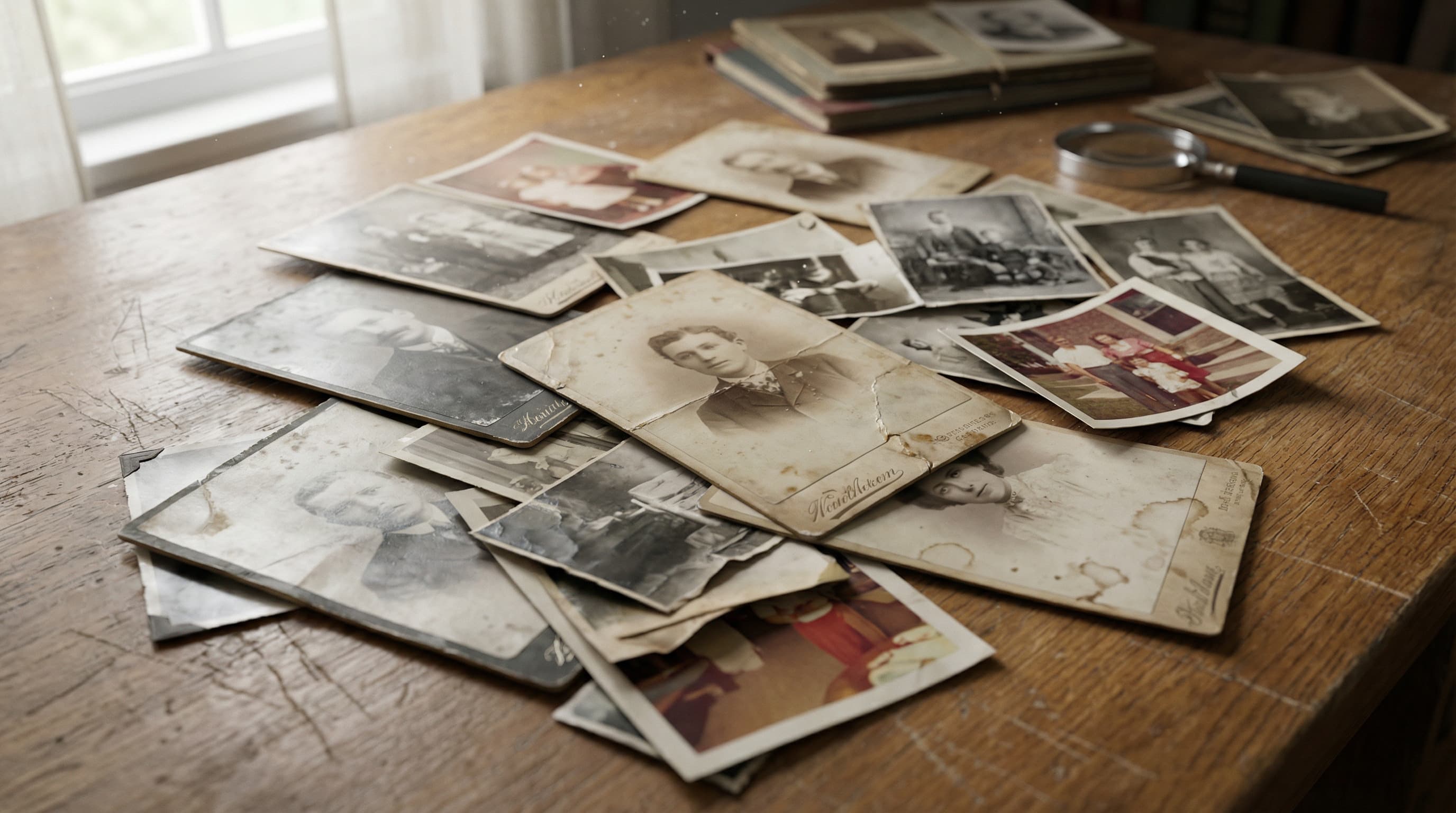
Every family has a drawer, album, or shoebox filled with photographs that capture irreplaceable moments. A grandparent's wedding day. A first birthday. A vacation that everyone still talks about. Over time, these photographs fade, crack, stain, and deteriorate — and with them, the clarity of those memories slips away.
Restoring old photos is more than a cosmetic exercise. It is an act of preservation. When you repair a damaged photograph, you are safeguarding a visual record of your family's history for the next generation. Whether the image is slightly faded or severely torn, there are practical steps you can take right now to begin the restoration process.
This guide walks you through everything you need to know, from preparing your photos for scanning to choosing the right restoration approach for your situation.
Step 1: Handle and Assess Your Photos Carefully
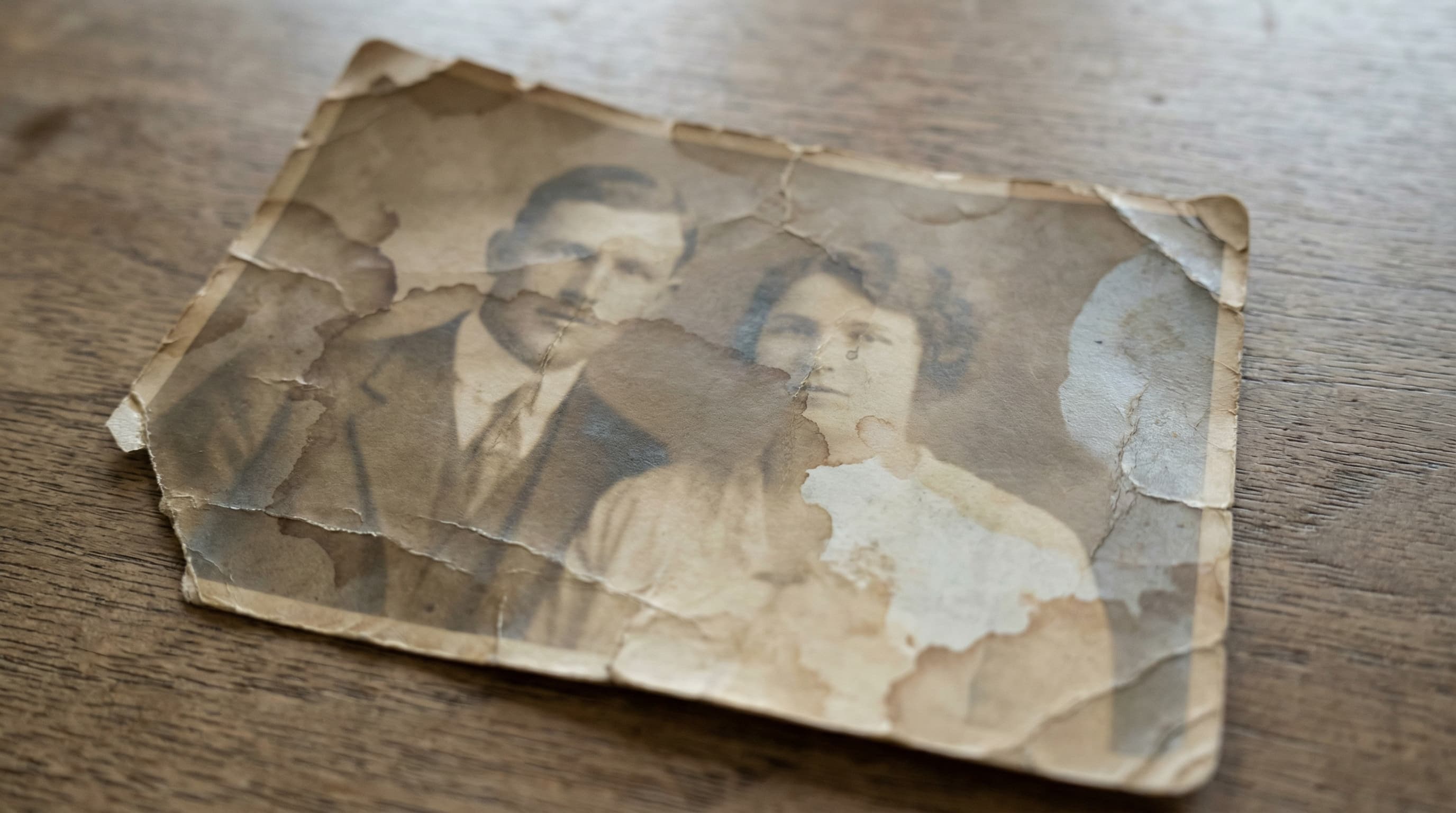
Before you do anything else, take stock of what you have. Gather your old photographs and sort them by condition. You will likely notice a range of damage types:
- Fading: Colors or tones have lost their vibrancy, often from prolonged exposure to sunlight.
- Yellowing: A warm, brownish tint that affects the entire image, common in photos from the 1960s through 1990s.
- Cracks and creases: Physical damage from bending, folding, or improper storage.
- Tears: Portions of the image are ripped or missing entirely.
- Water damage: Stains, warping, or mold spots from moisture exposure.
- Scratches: Surface marks from handling or stacking photos without protective sleeves.
Handle each photograph by its edges, and avoid touching the image surface with bare fingers. The oils on your skin can cause further deterioration over time. If a photo is stuck to glass or another surface, do not try to peel it off — this can destroy the image. A professional conservator can often separate stuck photographs safely.
Step 2: Digitize Your Photos with a Quality Scan
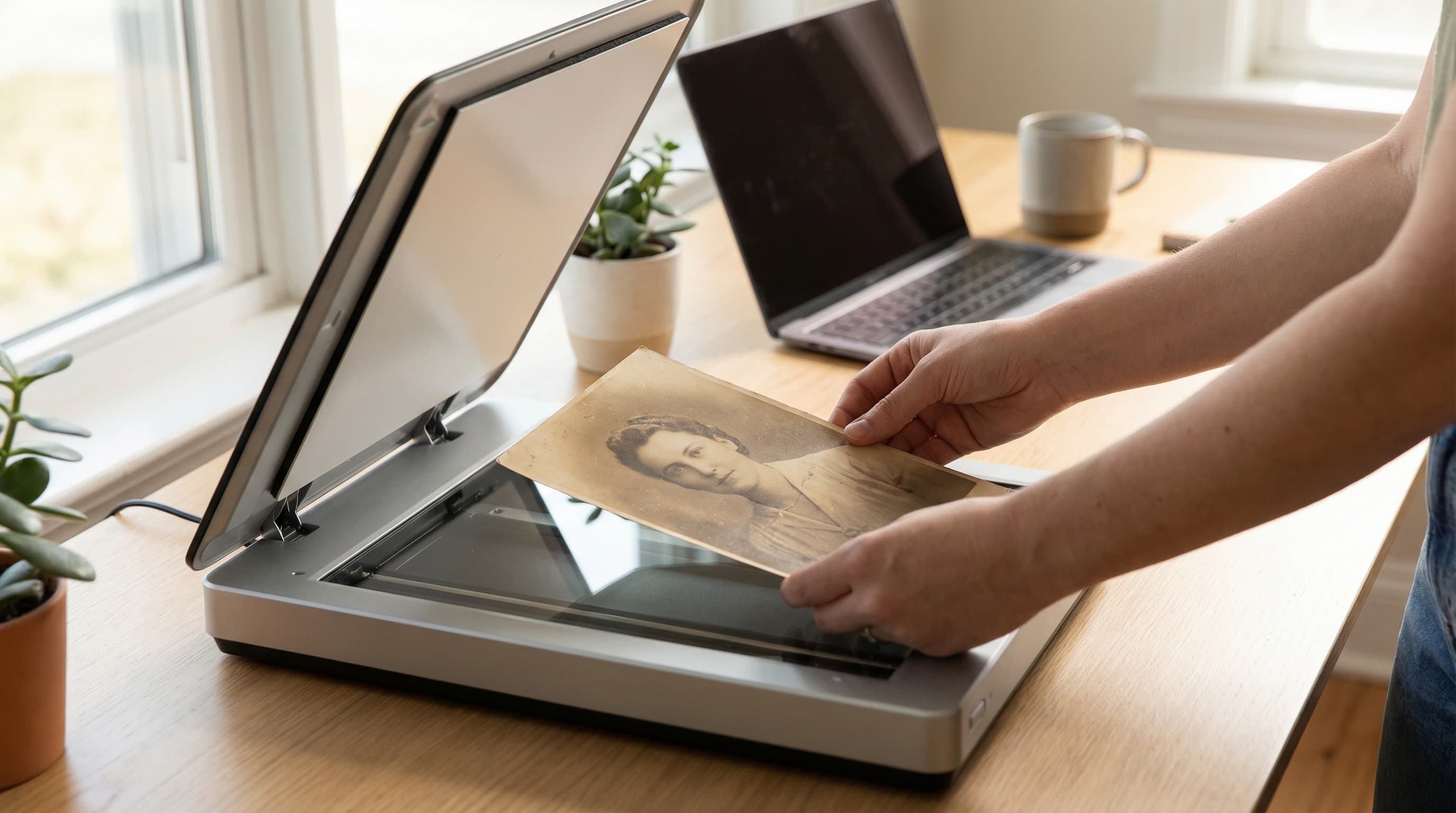
Digitization is the foundation of any restoration project. A high-quality scan captures every detail of the original image, giving a restoration artist the best possible starting point.
Scanning tips for the best results
- Use a flatbed scanner. Flatbed scanners produce sharper, more consistent results than phone cameras. If you do not own one, many libraries and copy centers offer scanning services.
- Scan at 600 DPI or higher. DPI (dots per inch) determines the level of detail captured. For restoration work, 600 DPI is the minimum recommendation. If you plan to enlarge the photo later, scan at 1200 DPI.
- Scan in color, even for black-and-white photos. A color scan captures subtle tonal variations — like sepia warmth or paper texture — that a grayscale scan would discard. Your restoration specialist can always convert to true black-and-white later.
- Do not use auto-correction. Turn off any automatic color correction, sharpening, or cropping in your scanner software. These adjustments can remove details that a skilled artist would want to preserve or work with.
- Save as TIFF or high-quality PNG. Avoid JPEG for your master scan. JPEG compression discards image data every time the file is saved, which degrades quality over subsequent edits.
Using a phone camera as a backup
If a flatbed scanner is not available, a modern smartphone camera can produce acceptable results. Photograph the image in even, diffused light (avoid direct sunlight or flash, which creates glare) and hold the phone parallel to the photo to minimize perspective distortion.
For the best phone-based results, we recommend Google PhotoScan — a free app available for both iOS and Android. PhotoScan uses multiple captures to automatically remove glare, correct perspective, and stitch together a clean, high-resolution scan. It works especially well for glossy prints that are difficult to photograph without reflections. Simply open the app, position your photo, and follow the on-screen dots — the app handles the rest.
Step 3: Assess the Level of Restoration Needed
Not every photograph requires the same level of work. Understanding the severity of damage helps you decide whether a quick touch-up will suffice or whether extensive reconstruction is needed.
Light damage (quick refresh)
Fading, minor color shifts, and light scratches. These issues can often be corrected with relatively straightforward adjustments to contrast, brightness, and color balance. Many photo restoration services offer an affordable tier for this type of work.
Moderate damage (full restoration)
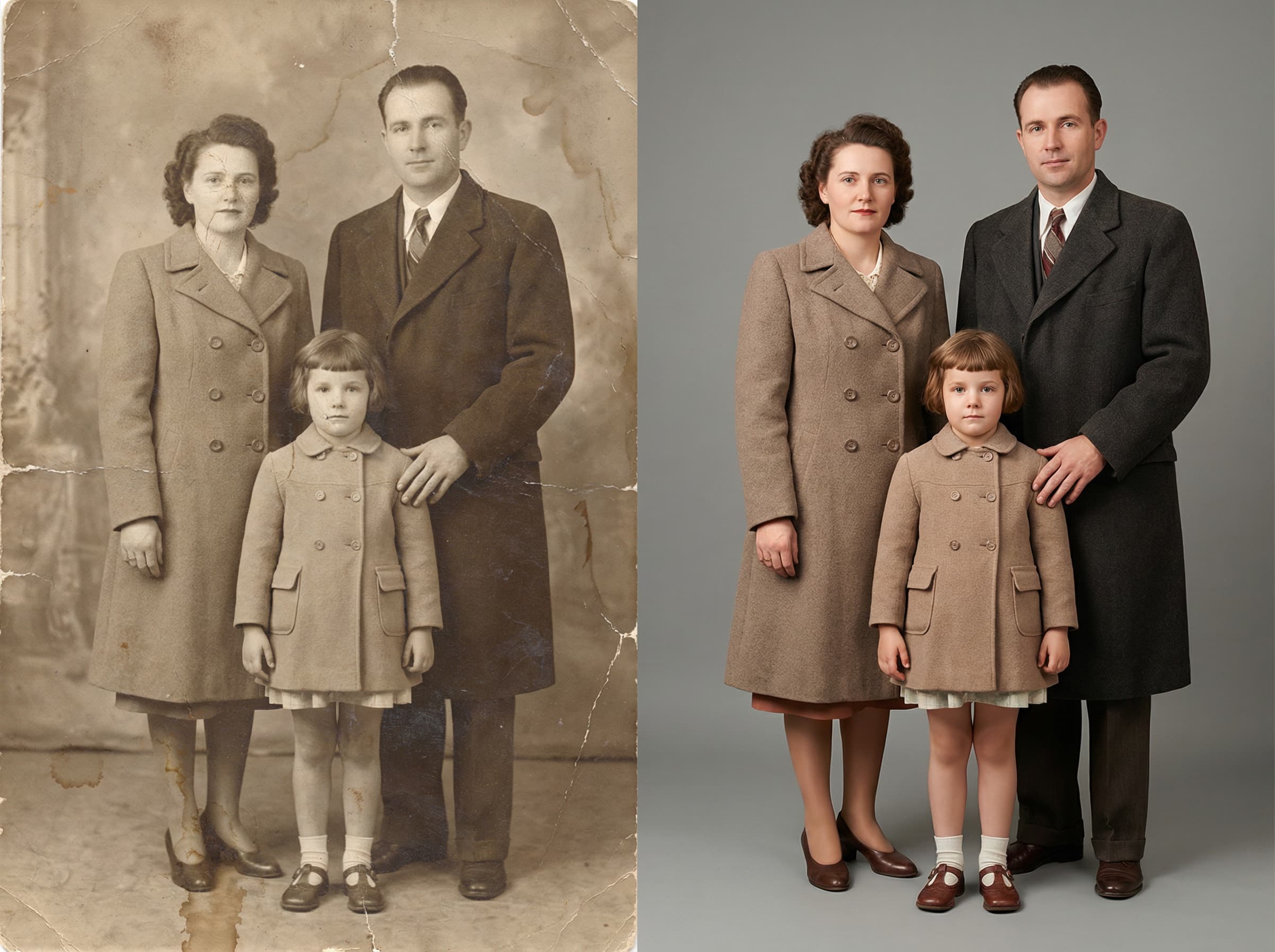
Noticeable cracks, creases, moderate staining, or sections where detail has been lost. This level of work requires careful retouching, where a restoration artist rebuilds missing details by referencing the surrounding image context.
Severe damage (heirloom reconstruction)
Large tears, missing portions of the image, heavy water or mold damage, or photos that have been torn into multiple pieces. This is the most labor-intensive category and calls for an experienced specialist who can reconstruct faces, backgrounds, and fine details with precision. You can learn more about what is achievable in our article on whether old photos can be restored.
Step 4: DIY Restoration vs. Professional Service
You may be wondering whether to attempt the restoration yourself or hand it off to a professional. Both paths have merit, and the right choice depends on the photo's importance, the severity of the damage, and your own skill level.
The DIY approach
Free and paid software tools like GIMP, Photoshop, and various mobile apps allow you to perform basic corrections at home. You can adjust brightness, fix minor color casts, and clone-stamp small blemishes. For lightly damaged photos that hold personal but not critical significance, this can be a satisfying project.
However, DIY restoration has clear limitations. Rebuilding missing facial features, correcting severe color degradation, and seamlessly removing large areas of damage require thousands of hours of practice and a trained eye. A misplaced clone-stamp or an overly aggressive sharpening filter can make a photo look worse — sometimes irreversibly if you overwrite the original file.
The professional approach
A professional restoration service combines skilled artists with advanced tools to deliver results that are virtually impossible to replicate at home. At RestoredPast, our team treats every photograph as a one-of-a-kind artifact. We work from your high-resolution scan (or we can guide you through the scanning process), and we return a restored digital file that you can print, share, and archive.
Professional restoration is especially worthwhile for:
- Heirloom portraits of grandparents or great-grandparents
- One-of-a-kind images where no duplicate exists
- Severely damaged photos that require reconstruction
- Photos you plan to enlarge, frame, or gift
For a deeper comparison, see our guide on professional vs. DIY photo restoration.
Step 5: Preserve Your Restored Photos for the Future
Once your photographs have been restored, proper storage ensures they remain in excellent condition for decades to come.
- Store digital files in multiple locations. Keep copies on an external hard drive, a cloud storage service, and optionally a USB drive stored off-site.
- Print on archival-quality paper. If you want a physical copy, use acid-free, archival-grade paper and pigment-based inks. These materials resist fading for 100 years or more under proper conditions.
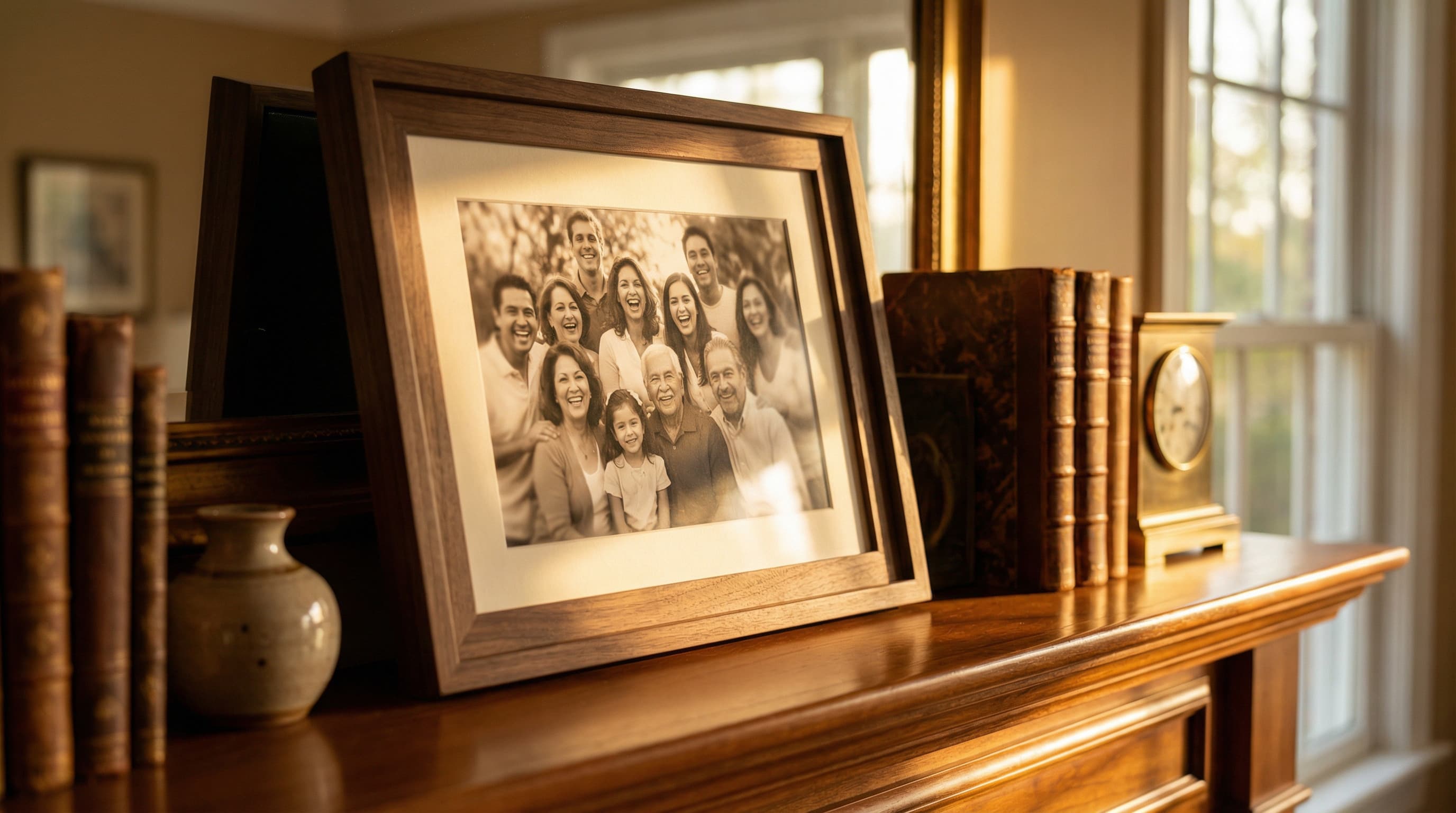
- Frame behind UV-protective glass. If you display a restored photo, UV-filtering glass or acrylic prevents light damage.
- Keep originals in acid-free sleeves. Even after digitizing, preserve the original prints in acid-free photo sleeves, stored in a cool, dry environment away from direct sunlight.
Frequently Asked Questions
How long does photo restoration take?
Timelines vary by the level of damage and the service you choose. A light touch-up may be completed in a day or two, while a complex reconstruction can take a week or more. At RestoredPast, most restorations are delivered within three to five business days.
Can you restore a photo from a phone picture instead of a scan?
Yes, though the quality of the result depends on the quality of the source image. A clear, well-lit phone photo can work, but a flatbed scan at 600 DPI or higher will always produce a superior restoration.
How much does it cost to restore an old photo?
Pricing depends on the complexity of the work. Basic corrections start at around $19, while full restorations and heirloom-level reconstructions range from $39 to $59 or more. Read our detailed breakdown of photo restoration costs.
Will the restored photo look natural?
A skilled restoration artist ensures that corrections blend seamlessly with the original image. The goal is always to make the photo look as it did when it was first taken — not over-processed or artificial.
Ready to Restore Your Family Photos?
Every photograph tells a story, and no story should be lost to time. Whether your images need a gentle refresh or a full reconstruction, professional restoration can bring them back to life with warmth and accuracy.